Row-count Estimates when there are no Statistics

I was discussing Cardinality Estimation with a colleague recently and the question came up, what cardinality does SQL Server use if you’re selecting from a column where there are no statistics available? I’ve discovered there are a few algorithms in play depending on how you’re querying the table. In this post we’ll look at where we have a predicate looking for a fixed value.

(If you want the short answer, it’s the fourth root of n cubed before SQL 2014 and the square root of n after that.)

This scenario can occur if you have AUTO CREATE STATISTICS turned off for your database, which we don’t recommend you do, but which you might choose to do anyway, and if you query a table with a predicate against a column with no index defined against it.
Let’s look at example. I’m using SQL Server 2012 for this investigation, and to start with am querying the AdventureWorks2012 database.
I’ve taken the following preparatory steps:

  • Set AUTO CREATE STATISTICS OFF for the database
  • Remove the Index on the LastName column for the Person.Person table
  • Removed any ad-hoc statistics that existed against the table

Then I run a simple query, with the Actual Execution Plan turned on:

SELECT *
FROM Person.Person p
WHERE p.LastName = 'Fox';

I only get one result out as there is only one Fox (Ms. Dorothy J.). Let’s look at the execution plan:

RowCountNoStatistics1

A clustered index scan as we might expect as I’ve removed any useful indexes from the table. You’ll notice there is a warning. If we view the tooltip you’ll see SQL warns us about the lack of statistics:

RowCountNoStatistics2

If we look at the estimated and actual row-counts we’ll see how that has affected us:

RowCountNoStatistics3

In the absence of any useful information – it knows the number of rows in the table but that is about it – SQL has estimated that there will be 1680 Foxes in the table. A bit of playing shows that we get the same estimate whatever value we search for.

If I turn AUTO CREATE STATISTICS on and run the query again then SQL generate a Statistics object against the LastName column and comes up with an estimate of 2.3 rows – which is a lot closer.

This matters a lot once you start running more complicated queries. The incorrect estimate is likely to affect the choice of plan that the optimizer makes, and may also affect the amount of memory it requests in order to run the query. Let’s look at a quick example of how the plan changes if we join the above query to another table.

First, without statistics (so I have to turn AUTO CREATE off again, and remove the statistics that got created):

SET STATISTICS IO ON;

SELECT e.EmailAddress
FROM Person.Person p
INNER JOIN Person.EmailAddress e
    ON p.BusinessEntityID = e.BusinessEntityID
WHERE LastName = 'Fox';

Here’s the execution plan:

RowCountNoStatistics4

You can see I’ve got a Merge Join as SQL thinks I’m expecting 1680 rows from the top table. A Nested Loops join would generally be better when I only expect one or two rows from that table.

I’ve also captured the IO so I can see how expensive the query was:

Table ‘EmailAddress’. Scan count 1, logical reads 10, physical reads 0, read-ahead reads 0, lob logical reads 0, lob physical reads 0, lob read-ahead reads 0.

Table ‘Person’. Scan count 1, logical reads 3818, physical reads 0, read-ahead reads 0, lob logical reads 0, lob physical reads 0, lob read-ahead reads 0.

Let’s look at the behaviour of the same query with statistics creation enabled:

RowCountNoStatistics5

You can see we now have the desired Nested Loops join and the Clustered Index Scan on the EmailAddress table has been changed to a Seek.

The IO output is below:

Table ‘EmailAddress’. Scan count 1, logical reads 2, physical reads 0, read-ahead reads 0, lob logical reads 0, lob physical reads 0, lob read-ahead reads 0.

Table ‘Person’. Scan count 1, logical reads 3818, physical reads 0, read-ahead reads 0, lob logical reads 0, lob physical reads 0, lob read-ahead reads 0.

There’s not much difference in the overall IO, but you can see the Reads for the EmailAddress table have dropped from 10 to 2 due to the change from the Scan to the Seek. If the table was a lot bigger then we could see a large difference here.

So where does that estimate come from?

I thought I’d have a play and see if I could work out how SQL decided on that estimate of 1680 rows. I did some googling and found a suggestion that it might be a straight 9% of the total number of rows in the table, but that doesn’t quite add up and when I compared the same query pattern against a few tables I found I got a different ratio depending on the amount of rows in the table.

So I pumped rows incrementally into a fresh table and looked at the estimate and what the ratio was as the number of rows increased. Here’s my SQL for that:

--Create a Horrible Heap for my testing  
CREATE TABLE dbo.TestStats(TestVal INT NOT NULL, TestText VARCHAR(255) NULL);

--Insert a bunch of rows using dodgy old-style cross joins
INSERT INTO TestStats
SELECT TOP 1 --Amount of rows I'm going to insert
    1 , 'blah'
FROM sys.objects a, sys.objects b, sys.objects c, sys.objects d, sys.objects e;

--Clear the plan cache so SQL generated a new estimate  
DBCC freeproccache;

--Query the table, then I go check the execution plan generated 
--for the estimated number of rows
SELECT * FROM dbo.TestStats
WHERE TestVal = 1;   

(One thing to note was that I got the same answers whether I was querying the text column or the integer column – SQL seems to use the same algorithm for both.)

I started to notice a pattern quite quickly, that the ratio halved when the number of rows went up by a factor of 16. I then restarted my test, targeting my row-counts to be where the estimated number of rows would be a nice round number. You can see that in the table below:

RowCountNoStatistics6

I then attempted to work out a formula for that. Rather than take you through the shoddy process of mathematics that led me to an answer, I’ll just tell you that the formula came out as:

RowCountNoStatistics6b

Where e is the estimated number of rows for a given predicate value, and n is the total number of rows in the table. I checked that against the full set of results I’d gathered and it held true across all values of n I’d tested.

To check it finally against my original query – the Person.Person table had 19,972 rows. I put that through the calculator with the formula and get 1680.027. If we look back at the original estimate you’ll see that SQL stated 1680.03  – so that is all good.

As I mentioned earlier I was using SQL Server 2012 for this test, and a new Cardinality Estimator came into effect in SQL 2014. So I thought I’d run the test again with SQL 2016 and see if the results changed:

RowCountNoStatistics7

We can see the estimated rows drop off a lot quicker here. Clearly Microsoft have decided to lower the estimate. Actually it is now just the square root of the total number of rows.

RowCountNoStatistics8

Hopefully you’re not in the scenario where you regularly have queries running without the appropriate statistics to support them. The above comparison though shows us that if you have such a query its behaviour could dramatically change if you upgrade your SQL Server version to 2104 or higher. It could become better or it could become a lot worse.

There are a lot of changes like this that came in with the new version of the Cardinality Estimator in 2014. Places where underlying assumptions have been adjusted to make better guesses about the number of rows that will be returned by an operator. But they are still guesses based on the same information – there is no new data being captured in the Statistics to better inform the process. Of course Microsoft has made these changes to try and better model data out in the wild – but they are still fixed assumptions, which means sometimes they will be better and sometimes they will be worse.

One thing I should re-iterate is that these formulae we’ve discovered above are for a fairly specific querying pattern. There’s no guarantee that the calculation will be the same for a similar – but different query. It might be interesting to explore that further in a later post.

Also there may be other information in your database – such as constraints – that SQL can use to educate its guesses.

The main takeaway from all of this though, should of course be:

MAKE SURE AUTO CREATE STATISTICS IS TURNED ON FOR YOUR DATABASES!

SQL Server 2016 SP1 – A significant change to licencing

Myself of all people am probably least likely to get excited by licencing changes in a product, but with the SP1 release of SQL Server 2016 there are some significant changes to benefit ISVs. I had to look up that acronym and apparently it’s Independent Software Vendors – which is the type of organisation I work for.

The change has brought many features that previously were only available in Enterprise Edition into the Standard version of the product – and something that has been mentioned less – even into the Express version in most cases.

This is fantastic where we are delivering software to clients, some of whom who may wish to use Enterprise, some Standard (or even Express). We no longer have to keep usage of these features out of our core product, which means we are able to maintain a single codebase. I can think immediately of Table Partitioning, Database Snapshots and Data Compression as things we might like to be able to use as standard in our products – but which were previously only available in Enterprise Edition (or Expensive Edition as it’s otherwise known).

On top of those, the new security features in SQL 2016, including AlwaysEncrypted (more on that in a later post) are now available in all the versions. These features are likely to become critical to us as the GDPR comes into effect (the European General Data Protection Guidelines) and we need to start making sure the Personal Identifiable Information in our products is protected to the highest levels. Having these features available in standard edition is going to make our lives one hell of a lot easier.

Here’s the breakdown of features available in the different versions of SQL 2016, contrasting what was available in the RTM version to what is now available in SP1 (picture taken from MSDN):

sql2016sp1licensing

There are still a bunch of Enterprise features not included in that list, but as a generalisation, most things that are configured at the level of database code (rather than server level and HADR) are included. The change is being sold as primary targeted at software organisations like ourselves and giving us the ability to have consistent database code for all our deployments.

On top of that, in Standard edition you can now have up to 24 processor cores and 128GB of memory (plus a bit more if you use memory optimised tables or columnstore indexes). That makes it fairly viable for even enterprise level workloads.

All in all, this change is great news for us software vendors in terms of what we can offer to our clients, and another good reason to upgrade to 2016.

SQL Server Query Store

An updated version of this post can be found here…

Query Store was, probably without doubt, the most anticipated and talked out new feature in SQL 2016. Certainly by the DBA community.

In this post we’ll just take a brief look at Query Store, what it is, how you set it running, and what you can use it for. This will be a fairly superficial overview – you’d need a book to cover it in detail – but hopefully this will give you a flavour of how useful this will be and how to get started.

What it does, at a base level, is actually quite simple. It just stores information relating to query execution over time.

That information consists of two things:
• Execution Plans – the execution plans generated for each query are stored in the query store, and if the plan changes the new plan is also stored.
• Performance metrics – information such as CPU consumption, reads and writes, are captured and stored for each query.

This information is aggregated over intervals (default is one hour) so you can see how query performance changes over time.

This isn’t earth shatteringly new, you can already query to find out the execution plan for a query and you can also query to find aggregated performance metrics related to a given query.

The difference is that now a history can be maintained without implementing additional monitoring. Previously the performance metrics would be aggregated as a single total since the last restart of the SQL instance – and would be cleared at the next restart. Now they are persisted and time-sliced so you can actually measure changes over time.

The simple activity of storing old execution plans is also profound for performance troubleshooting. Anyone who’s worked with large scale production data will have experienced the issue when a function that was working fine, fairly suddenly starts to develop performance problems.

A common cause of this is what’s known as “plan regression”. Basically this is where the execution plan has changed – and the new one’s just not as good as the old one for most executions. Previously you might suspect this was the cause of an issue you were seeing, but there was no way to easily prove it, now you can use query store to view and compare the old and new plans to verify this. You can even with a click or two force the query to go back to using the old (better) plan – though we hope people won’t overuse this and will try to at least delve into the cause and think about resolving it. There is usually a reason SQL thought the new plan would be better – and a particular plan may work for now but may not always be the best plan in the future as your data changes.

Let’s have a look at these features in little more detail.

Enabling Query Store
Query store is a database level configuration. It’s important to understand that, and that the information stored is actually stored within system tables in the database. That means that if you backup and restore the database, the information is retained. Also very importantly, the information is stored asynchronously – so there shouldn’t be any performance impact on the executed queries themselves. Unlike with the Live Query Stats, in this case a watched pot should boil just as quickly. There will of course be some overall server overhead at the point the data does get saved, but that shouldn’t be too significant.

So you can enable Query Store for a database through T-SQL (or in your source code) or through the GUI in SSMS. I just want to demonstrate doing this through the GUI so you can see some of the options. Right-click on the database, select properties, and then select the Query Store page all the way at the bottom:

QueryStore1

Above you can see Query Store enabled for the WideWorldImporters database, with all default settings.

The first setting is “Operation Mode”. By default this is set to “Off”. To enable Query Store and get it running for a particular database you change it to “Read Write”. Job Done.

The Data Flush interval is how often the query store data gets written to disk – remembered I said this was asynchronous.

The Statistics Collection interval determines the size of the time slices that your query performance metrics get aggregated into.

Then we have some stuff about data retention. It’s worth noting that if your query store fills up and nothing is happening to clear it out then it flips to Read-Only mode and won’t store any more data until space is freed up. The default amount of space set for it is 100MB – that’s not a lot of space so I really can’t see any justification from that point of view for not enabling this feature.

Leaving the “Size Based Cleanup Mode” set to Auto should make sure that old data gets purged if the query store starts to fill up. Above that is the “Query Store Capture Mode” – if you leave that to AUTO it will ignore infrequent queries or those with negligible overhead.

The last setting “Stale Query Threshold” is how long it keeps data for in days. So 30 days for default. I can see it being useful to up this significantly it we want to use Query Store to be able to monitor performance over a long period, but it may depend on how much space Query Store wants to consume for your database – remember the default is 100MB but you can up that to whatever you like.

At the bottom of the properties page you can also see some nice pie charts that show how much of a proportion of your database Query Store has allocated, and how much of that space it is using.

So that’s Query store set up and configured, let’s have a look at a few of the things it gives us.

Query Store in Action and Forcing a Plan
I’ve set up Query Store as above in a copy of the WideWorldImporters databases on a SQL 2016 instance. I’ve created a stored procedure that I’m running every two seconds and I’ve set the Statistics Collection Interval in Query Store to 1 minute (rather than an hour) so that I can get some figures and graphs out fairly quickly.

Under the database in SSMS, there is now a Query Store folder where some built in reports reside:

QueryStore2

For the sake of this blog post I’m just going to look at a couple of these. Let’s open the “Top Resource Consuming Queries” Report:

QueryStore3

You can see a few things here. On the top left is a bar chart of the most expensive queries (you’ll notice one large one and the rest are negligible in comparison – the large one’s my query). You can configure whether you want to look by CPU or Logical Reads amongst other options and whether you want to look at averages, or maximums or minimums. Basically there a whole bunch of ways you can configure your view.

I’ll be honest that I struggled with some of these built-in Query Store reports to get them to show me what I wanted, so expect a bit of playing around to figure things out if you are using this feature.

In the bar chart, the bar highlighted in green is the currently selected query, on the right we can then see a scatter graph of the execution figures for this query across our statistics intervals (remember I’ve set it to have intervals of 1 minute). You can see I’m looking at average logical reads. You will also see that this query was ticking along nicely until about 14:05 when something happened (that was me!) and the logical reads for each execution of the query suddenly shot up. The blobs on the scatter graph have also changed colour at this point and that represents that the query is now using a new execution plan.

Next to this graph is a key telling us which plan each colour of blob represents and if you click on the plan in the key that you want, the plan itself is displayed in the bottom pane. At the moment I’m looking at the original plan (Plan 1). You will notice that the title specifies that it is “not forced”, you’ll also notice a button to the right of the title that gives us the option to “Force Plan”. Let’s just hold off a minute before we do that.

Before we change anything to try and fix the issue with this query, let’s look at the “Regressed Queries” report. This is pretty similar, but you may use it from a different direction. I.e. it may not be one your most expensive queries that has started going bad, so if you look in the Regressed Queries report it will focus on ones for which the execution plan has changed in the interval you are looking at. Again I found it a little challenging to get this report to show me the query I was interested in, some playing around can be required:

QueryStore4

You can see here that I have just one big fat bar on my bar chart – as I only have one regressed query in the interval (last 30 minutes) I chose to look at. This can make it easier to identify queries suffering this issue.

I’m going to go back the the previous Resource Consumers report and try and fix the problem. Now, in reality I know what I did and why the query went bad. It was the result of something caused parameter sniffing, which is where, if a stored procedure recompiles, the execution plan that is formed may be different depending on the parameters it is executed with. Basically it forms the best plan for the parameters supplied – but that might not be the best plan for all sets of parameters. In this case I forced the stored procedure to form a plan that was going to be expensive in most cases. More on that in my next set of performance tuning workshops.

That issue would be best fixed in the code of the stored procedure, but in production, turning around a fix may take days and we have the problem right now. So let’s use the Force Plan functionality to fix the symptom – just for the moment.

I select the plan I want, and I click the “Force Plan” button. The effect is immediate and I notice it within minutes because my statistics collection interval is so small. I’ll let it run for a bit and then show you the new graph:

QueryStore5

You can see the query has now returned back to healthy (quick) execution. Note the Orange blobs all now have a tick over them to denote that this plan is now forced.

Comparing Plans

A related feature in SQL 2016 is the ability to compare two execution plans to see what’s changed. I haven’t found this that amazing myself when I’ve looked at it, but that’s mainly due to the natural limitations – if two plans are significantly different then something that highlights the differences is just going to highlight the whole thing. However it can be useful at least to have both plans on screen at the same time so you can go back and forth easily.

You don’t need to do this through Query Store – if you right-click on any Execution Plan in SSMS there is now the “Compare ShowPlan” option, and as long as you have the plan you want to compare against saved as a file then you can go ahead. Note that one good thing is that this is an SSMS feature, so as long as you have SSMS 2016 you can use it to compare plans from on earlier versions of SQL Server.

With Query Store you can compare plans directly from the Store. If we go back to one of the reports above, the plans are listed in the key for the scatter graph. You can select more than one by using Shift+Click. Then you can click the button in the toolbar above the scatter graph which has the ToolTip “Compare the Plans for the selected query in separate window.”

Let’s do that for the two plans formed for our query above. The resulting view shows us two views side by side. It may be useful to look at these separately so they fit better on this page. On the left we have:

QueryStore6

The area highlighted in Red is where the tool had identified that the two plans are the same. The rest it is not so sure about. All the same it’s a nice visual view just to be able to see what both plans are doing. On the right hand side of the screen you then get this view:

QueryStore7

This shows us a comparison of the properties of whichever operator is selected in each plan – note this need not be equivalent operator in each plan. You can select the Nested Loop operator in the top and the Index Scan operator in the bottom and it will show you those – though the comparison may not be that meaningful!

So, this is kind of a useful tool, but don’t expect it to magically solve the process of comparing plans for you. In general too much changes from one plan to the next for it to be that simple – but this may help – a bit…

Query Store Catalog Views

Like everything else in SQL Server – all the information you can access through the GUI in SSMS, is available directly through the use of system catalogs and views. So if you want to examine the information in a way that isn’t supported by the built in reports then you can just go ahead and write your own queries.

The new views available are:

sys.database_query_store_options
sys.query_context_settings
sys.query_store_plan
sys.query_store_query
sys.query_store_query_text
sys.query_store_runtime_stats
sys.query_store_runtime_stats_interval

Rather than me going into detail here, I’ll just refer you to the MSDN reference:

https://msdn.microsoft.com/en-gb/library/dn818149.aspx

Conclusions

Query store is a great new feature. It’s not rocket-science but it is going to be very useful. In particular it will massively aid the investigation of production issues, saving time for those troubleshooting them at exactly the point they need time saving – right when everything’s hitting the fan.

It should also be very useful for monitoring performance over time and being able to keep ahead of scalability issues with specific queries.

The new methods for forcing a plan are also excellent for quick fixes – but there is the fear that this will be overused. It is possible to force plans in earlier versions of SQL – but tricky, so people usually just fixed the code. Forcing plans can end up being a case of treating the symptoms rather than the cause – and can lead to other problems later on.

From a personal l point of view I’m looking forward to the day when someone asks me to look at some problems in a production system, and I find out it’s on SQL 2016 and Query Store is enabled. My confidence in finding the answers quickly will be massively improved.

Of course then I’ll probably find out that is hasn’t been configured correctly to purge old data and has been read-only for the last 6 months-  but hey-ho!

SQL Server 2016: The Coolest New Feature – Live Query Stats

This is the first in a series of blog posts about how great SQL Server 2016 is, and why you should all want to upgrade your applications to this platform.

I’ll be honest with you, I’m not usually a person to be bothered about new versions, about being up there at the bleeding edge. I’m happy and comfortable in my old tools – like a well worn sofa and pair of slippers.

In my head I still don’t really see anything wrong with SQL Server 7 (which was the first version I used in anger). Although to be fair, if you make me go back as far as SQL 2000 now, I do start to realise how much we were missing back then. If you ask me what was my favourite new feature in SQL 2014 though, I might have to rack my brain a bit – were there any useful new features in 2014? I know hardly anyone adopted it.

SQL Server 2016 however has a number of features I’m (dare I say it) quite excited about. The sort of things where you go – oh wow, that is seriously going to make my life easier. And that’s what we all want isn’t it? An easier life. 2016 is probably the most significant release in over 10 years, and the features provided are going to make life easier for DBAs, for developers and also for those responsible for the security of our data.

So enough of the intro, let’s get started, in today’s post we’ll look at what is arguably the coolest new feature…

Live Query Stats

Rather than try and explain what this is, in the first instance it’s probably easier just to show you.

I’m going to create an arbitrary query that takes a little while to run. Here it is:

--Don't do stuff like this:
SELECT count_big(*)
FROM
[Purchasing].[PurchaseOrderLines] a,
[Purchasing].[PurchaseOrderLines] b,
[Purchasing].[PurchaseOrderLines] c

You can turn on Live Query stats through the toolbar in SSMS (the button is next to the one for including the Actual Execution Plan), or right click over your query window and select it from the menu:

livequerystats1

Then when you run your query, you’re going to see something like this:

livequerystats2

I’ve only shown you part of the execution plan so you can see clearly what is going on. You’ll see it basically shows you the progress of each of the operators in your execution plan.

If your brain works like mine, you’ll immediately think of all those times when you’re waiting for a query to finish and wondering if you should wait or just kill it, and you’re thinking – “This is great, this will tell me how long my query has left to run!”

Then you’ll go “Oh hang on, I have to have turned live query stats on before I run my query if I want to see this info. Maybe not that useful after all.”

That was literally what I thought when I first encountered this, but then I found you could connect to (potentially) any currently running query. Production DBAs are going to love that part of it, being able to check out long running queries and see from the level of progress whether it’s worth killing them, or not.

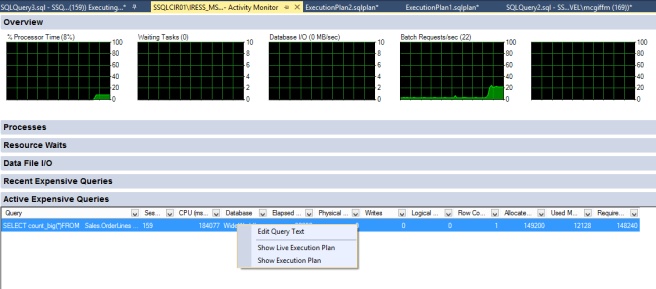
One way you can do that is through the Activity Monitor (right-click on your SQL Instance in SSMS and select from the menu). You can probably find the query you’re interested in under “Active Expensive Queries”:

livequerystats3

You can right-click over the query and select “Show Live Execution Plan” from the menu.

There is a Caveat though for this, which is that you need a particular Trace Flag enabled globally on your instance to enable this. Otherwise the option will be greyed out. The traceflag is 7412 which enables a “lightweight statistics infrastructure which can be used to view the live query statistics from other sessions”.

You can set this flag from any session even once the query you’re interested in is already running, however it will be lost when SQL restarts unless you have set is as a start-up parameter for your SQL Instance:

--Enabling a Global Trace Flag
DBCC traceon(7412,-1);
GO

There are other ways of achieving the same functionality but I think the trace flag is the easiest.

Of course, you may be in a situation where you can’t make such changes as enabling a trace flag. Don’t worry, there is still a way to view the progress for a running query.

All you need is the SessionId for the running query. There’s lots of ways of getting this. In the above example, you can see it in the Activity Monitor, if it’s your own query then it’s shown at the bottom of your query window in SSMS.Once you have the Id then you can just run this query:

--Get the execution plan and current progress for session 159
SELECT *
FROM sys.dm_exec_query_statistics_xml(159);

That will give you output like this:

livequerystats4

Simply click on the query plan XML and you can see the actual plan being executed. Within the properties for each operator you can see “Actual Number of Rows” which tells you how many rows have been processed so far. You can compare this to the Estimated Number of Rows to get an idea of progress – as long as the Estimates are accurate!

livequerystats5

It’s not animated, and doesn’t update, but does give a current snapshot which is all you generally need.

So, as seen, SQL 2016 offers you the ability to look at live queries and see what’s going on in more detail, in particular to be able to assess the progress which is something you couldn’t do before. Plus the animated view is a bit cool. I think this is going to a really useful feature not just for DBAs, but for anyone who has sat looking at the time ticking by while they wait and wonder if their SQL query is ever going to finish.

Performance – Read This!

Nothing comes for free in life and a watched pot never boils.

I anticipate that turning on the traceflag will have negligible affect on performance in general as the base functionality is enabled anyway – as can be seen by the data being accessible through the sys.dm_exec_query_statistics_xml DMV. It is also implemented using Extended Events which have been shown to have minimal overhead compared to profiler traces. Only testing with a workload can prove this though and I haven’t been able to undertake that activity.

Watching an individual query via the animated Live Query Statistics view however does seem to have a high overhead, and it’s also already known that turning on the generation of Actual Execution Plans in itself has an overhead. I did some basic testing with a reasonably long running query that took about 150 seconds to complete without this turned on and then compared the results. In this case, a watched pot took significantly longer to boil. The results were reasonably consistent over a series or runs. With Live Query Statistics turned on, and watching it in SSMS, the query took approximately 50% longer – about 225 seconds.

This is quite disappointing but doesn’t mean you shouldn’t use this. The recommendation though, would be that if you are using this to check the progress of a query in production, check the Live Query Stats to see how it’s progressing, and then close them again so the query can continue without the additional overhead. Also consider using the DMV instead. I imagine there will be some overhead in calling the DMV, but that is a one off operation rather then the ongoing polling that the animated view uses.

One thing to note is that this sort of usage is not the only point to the Live Query Statistics. They can also be very useful for a quick visual way of verifying where your query is getting bogged down, as well as a helpful tool for understanding the flow of data.